
Before a show there are two rooms, one on each side of the curtain. Yours is the control room: the board you run the show from, and also where you warm up. Your fans wait in the waiting room — the live's own public page, before you go live. Your side is one page from warm-up to END, so your camera never has to survive a page switch: you check your setup, bring your guests on and press GO without ever leaving.
Warming up — the two sides of the wait
Yours and your crew's, at Studio → the live → Control room. It is the same page before GO and after it — there is no separate room to switch into, which is exactly why your camera survives going live. Your camera warms up in the monitor at the top, and your guests join there. There are two ways to get a guest on camera. Anyone already in your room can be promoted from the Participants panel — pick Make Co-host or Make Panelist from their ⋯ menu, and they wait in the Greenroom panel until you tap Bring on stage. For somebody who isn't in the room yet, open the live's own page (Studio → Lives → the live → Crew), enter their name and email, and tap Invite a guest; when they open the link they turn up in the Greenroom panel the same way. Once the show is on, this same room is the stage: everyone on camera is on the broadcast.
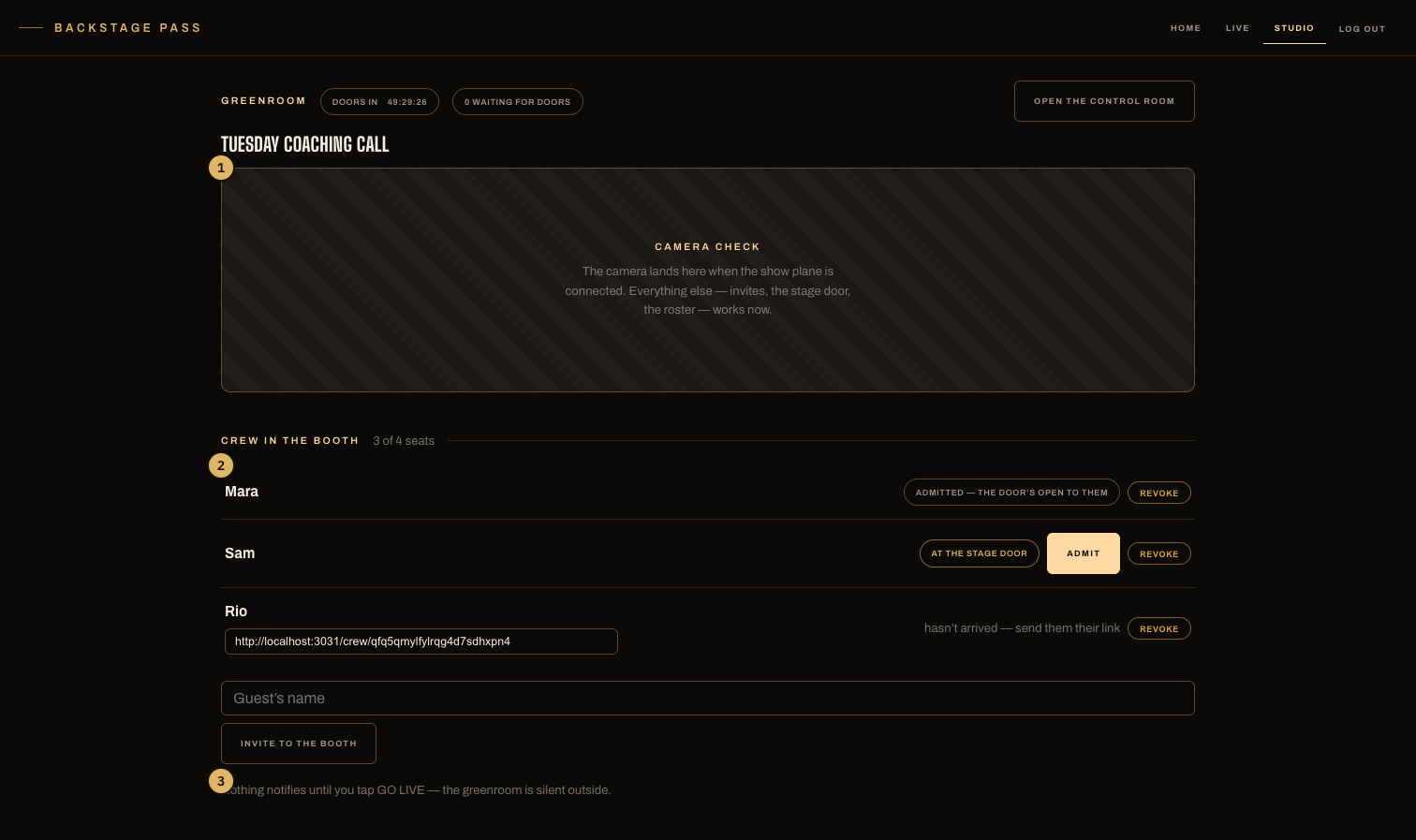
- The camera, warming up — the same room becomes the broadcast at GO LIVE.
- Your crew: hasn't arrived → waiting in the control room → Bring on. Removing a guest stops their link working.
- The block at the top says exactly what the tap does: check your camera and mic here, and GO LIVE is what puts you in front of the attendees and starts the recording.
Your fans', on the show's own public page — the same address the live keeps for its whole life. Before you go live it shows the countdown to your announced time, who's waiting, and the RSVP button. When you tap GO LIVE, every page in that waiting room refreshes into the live room — doors open, everyone walks in. No fan has to reload anything.
Open the live’s page yourself and a Fan preview bar sits on top: it “shows what your fans see.” Tapping Count me in there explains what a fan’s tap does and counts nobody in.
The waiting room's chat is yours to open
It starts closed for your fans, and a quiet waiting room is a waiting room rather than a fault: nobody has walked into a live room and found nothing to say yet. You can always write — a closed room means your fans cannot answer, not that nobody can talk — and everyone who has joined reads what you post either way. The switch is behind the gear at the top of the chat box in your control room: Waiting room chat · Enable / Disable. Enable it and it is the live chat, early: the same box, the same reactions, the same panel you'll be reading during the show. Flip it and every page in the waiting room changes on the spot; nobody reloads.
Fans have to join to see it. Anybody can look at your live's page — the countdown, what it's about, who's hosting — but the room's words are for the people in the room, which is what makes them people you can see, count and keep.
Two things it never does. It notifies nobody — opening a room is not an announcement, and your guest list hears at GO LIVE and only at GO LIVE. And what gets said in the waiting room never lands on the replay: the encore replays the show's own chat on its own beats, and the warm-up isn't part of the show.
The control room — where you drive
Every live has one, at Studio → the live → Control room. It is the one full-screen page in the studio — no nav bar, no sidebar, and a single chevron beside the live's name to get back — because everything on it is the show. Scheduled, it holds the GO LIVE button, your camera and your crew. A scheduled live’s GO LIVE turns on 30 minutes before its start time. (Calling a live off lives on the Lives board's ⋯ menu, not here: this page is where you start.) Live, it's the board:
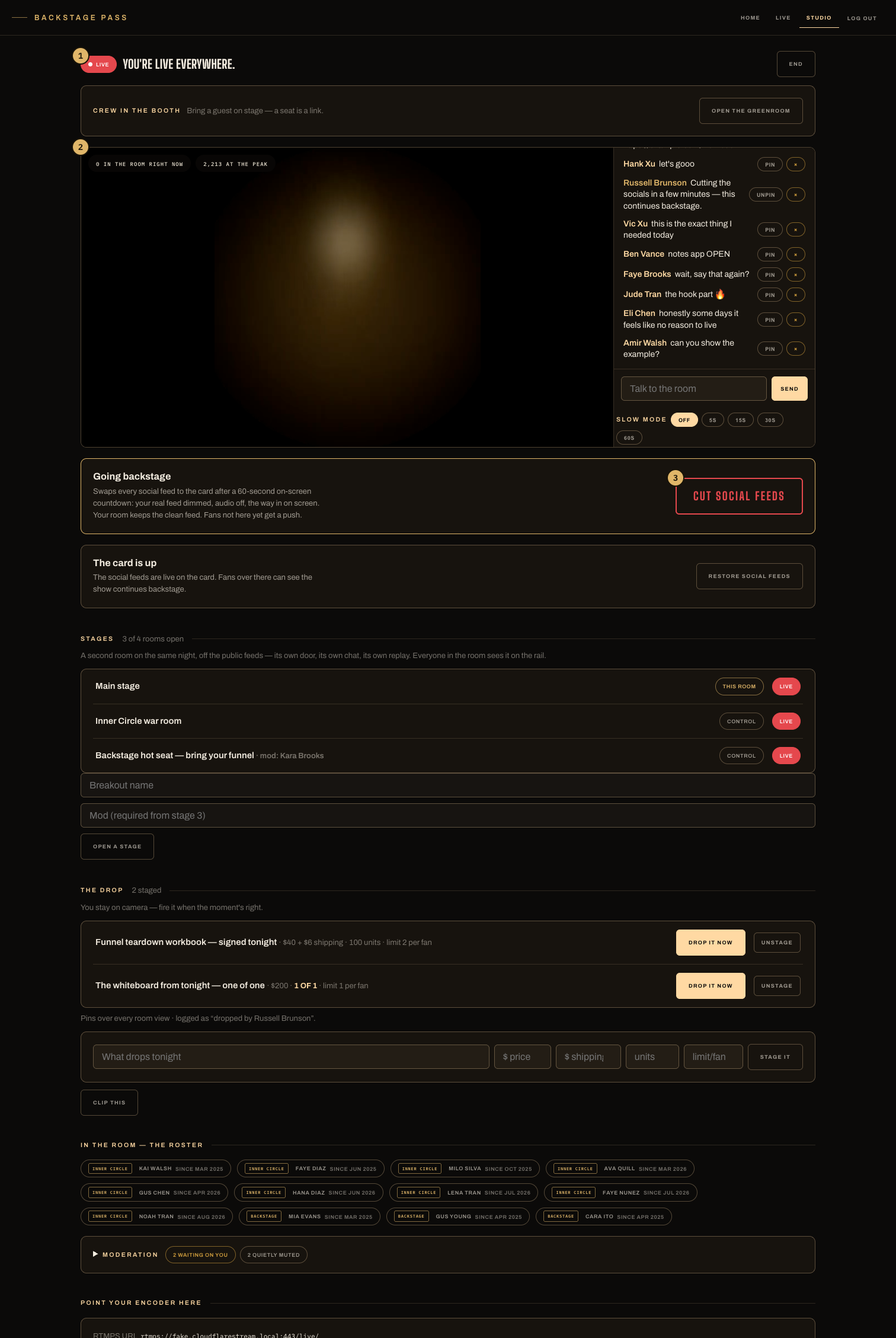
- The top bar: the live's own name, Copy invite link, and the ring of feeds this live is going out on — gold means it's playing.
- The program, with the tense and the room's count above it and the chrome below: CUT THE SOCIALS, Focus, and End behind a confirm.
- The rail on the right: Chat · Participants · Greenroom · Banner · Destinations · Drops · Moderation. One panel at a time, and closed the program takes the width.
- The cut — CUT THE SOCIALS under the program, and the same button at the foot of the Destinations panel. Either one, same act; the restore is in the same place.
- Chat — the room's own chat, the same thread your fans are reading. Pin, delete and restore on every message, and the gear in its corner for the chat's own settings.
- Participants — everyone in your room on BackstagePass, by name, with Host, Co-host or Panelist beside them if they hold a seat. Every action about a person is behind the ⋯ on their row — Make Co-host, Make Panelist, turn off their chat, or remove them from this live. Who paid to get in is under the list.
- Greenroom — who can come on camera. Crew is your standing team, with a badge saying where each of them is right now; Guests are the people you invited on camera for this live, waiting until you tap Bring on stage. Take off stage sends them back. Go to Greenroom at the foot of it opens the room itself in a second window — the private one, where your guests talk to each other and nothing is broadcast. Your stage mic mutes while you're in there.
- Destinations — where else this live is playing, one row per platform: Ready, Needs today’s key, Not ready or Not connected. Before GO LIVE, Add puts a connected platform on this live and Remove takes it off; TikTok and LinkedIn take today’s key here. Preview the widget shows the card the socials see if you cut. A platform you haven’t connected is connected on Studio › Destinations, and can’t join once you’re live.
- Drops — set up and drop a drop.
- Moderation — two answers for this live only (Standard, Strict), a switch to hold messages with links until you've read them, and one house rule the moderator will follow for this live. Under them: what we flagged, who's quietly muted, everything that happened, and anything fans reported. Your standing settings live in Studio › Moderation and are untouched by anything you change here.
- The chat's settings — behind the gear at the top of the chat box. Before you go live: Waiting room chat, on or off for your fans. Once you're live: Live chat, the same switch a tense later. Either way you can still write, and you can bring the chat back any time. Chat cooldown is there too: one message per fan every 5, 15, 30 or 60 seconds, or off.
- Focus — hides the bar, the rail and the panel and gives the program the whole screen. One control brings them back.
- The room's numbers — who's here now, above the program, and the peak once there is one.
The short version
- Waiting or warming up, with a camera? The control room — the monitor at the top of it.
- Pressing buttons that change the show? The control room — the same page, before GO and after.
- Fans never see your control room; they wait in the waiting room — the live's own page — and walk in when doors open.